
How to Upload the Cisco Inventory Data (Cisco SKUs)
Cisco Inventory Data can be used to:
- Win new customers by providing insights to their IT assets based on a list of Cisco SKUs
- Enrich an existing customer profile with additional Cisco SKUs outside of the known Install Base or other data source
Step 1: Log in to Paratira and Click on Reports
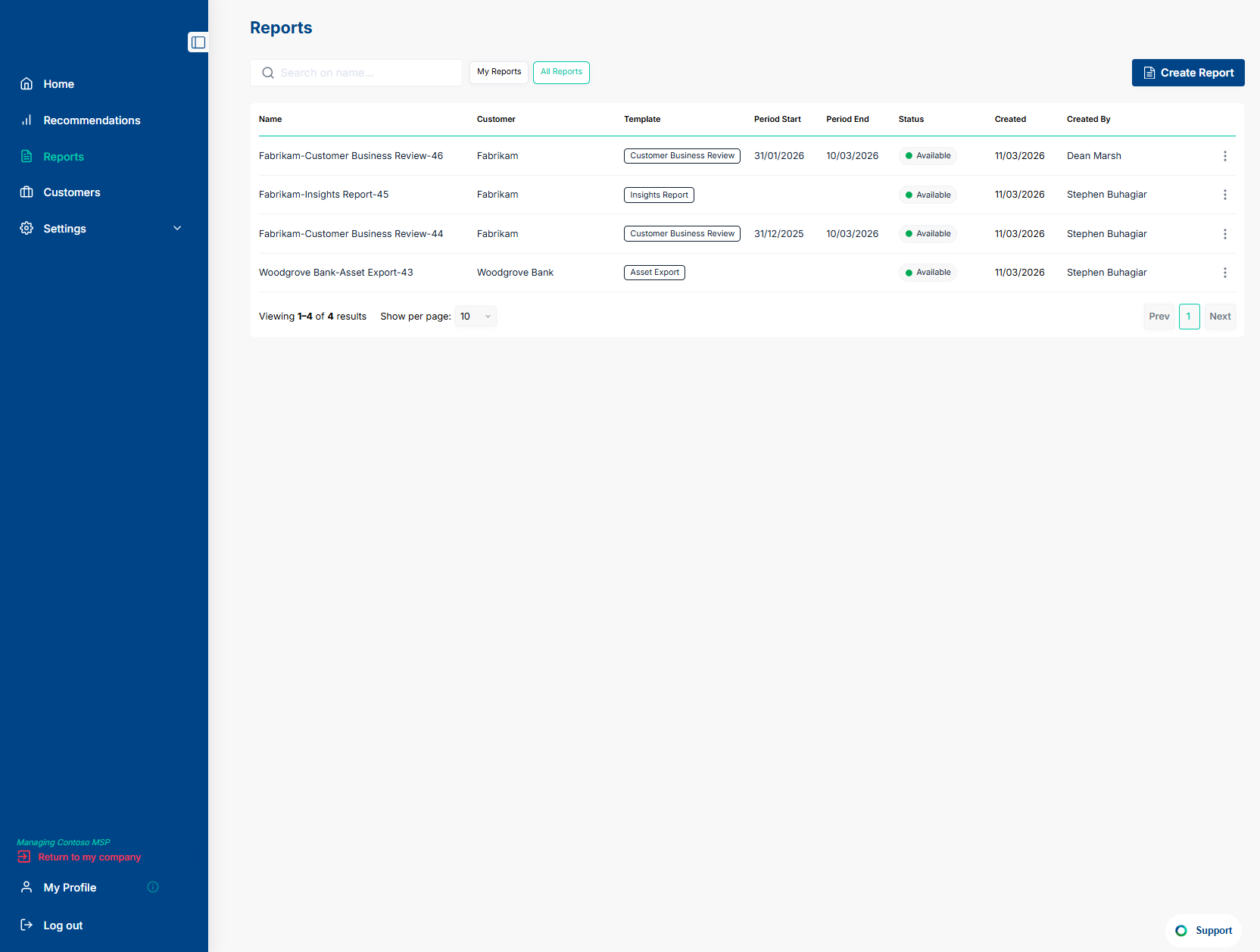
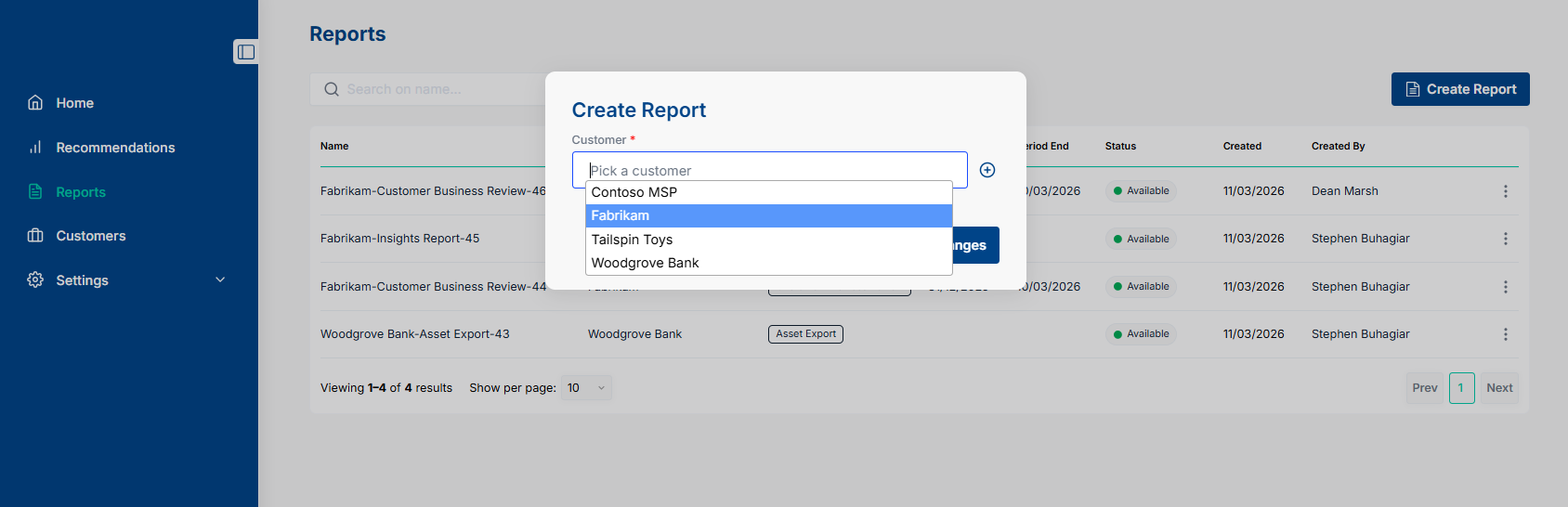
Step 2: Click the Create Report Button and Select a Customer from the List
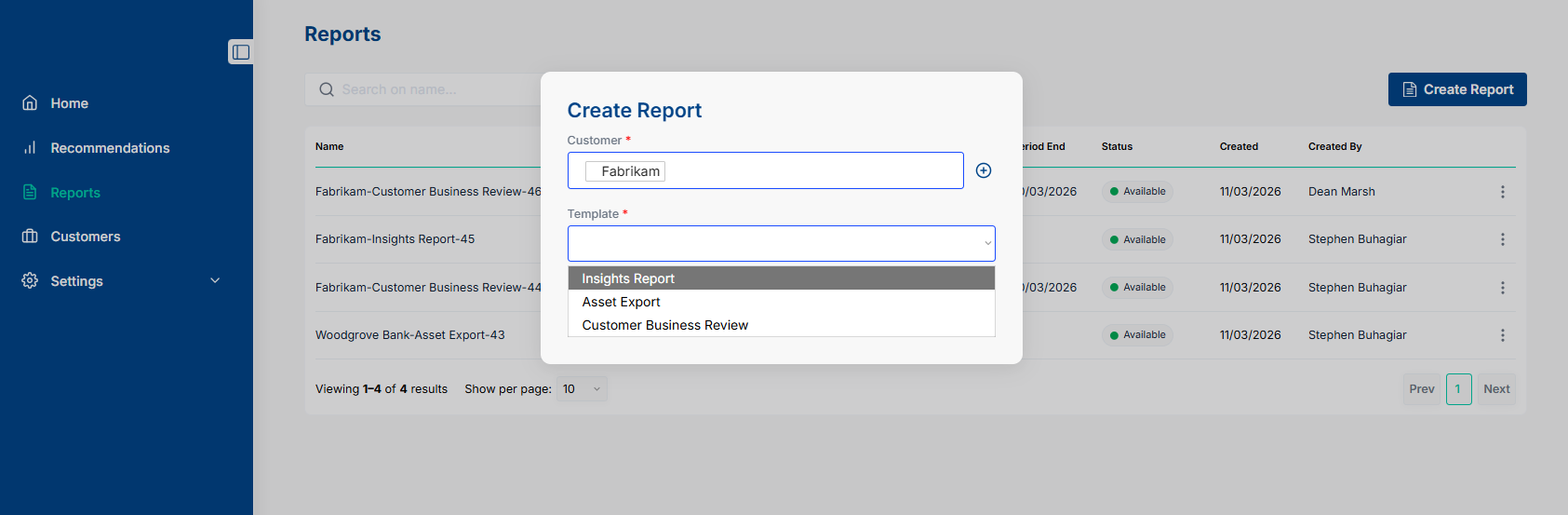
Step 3: From the Template Drop Down List Select Insights Report
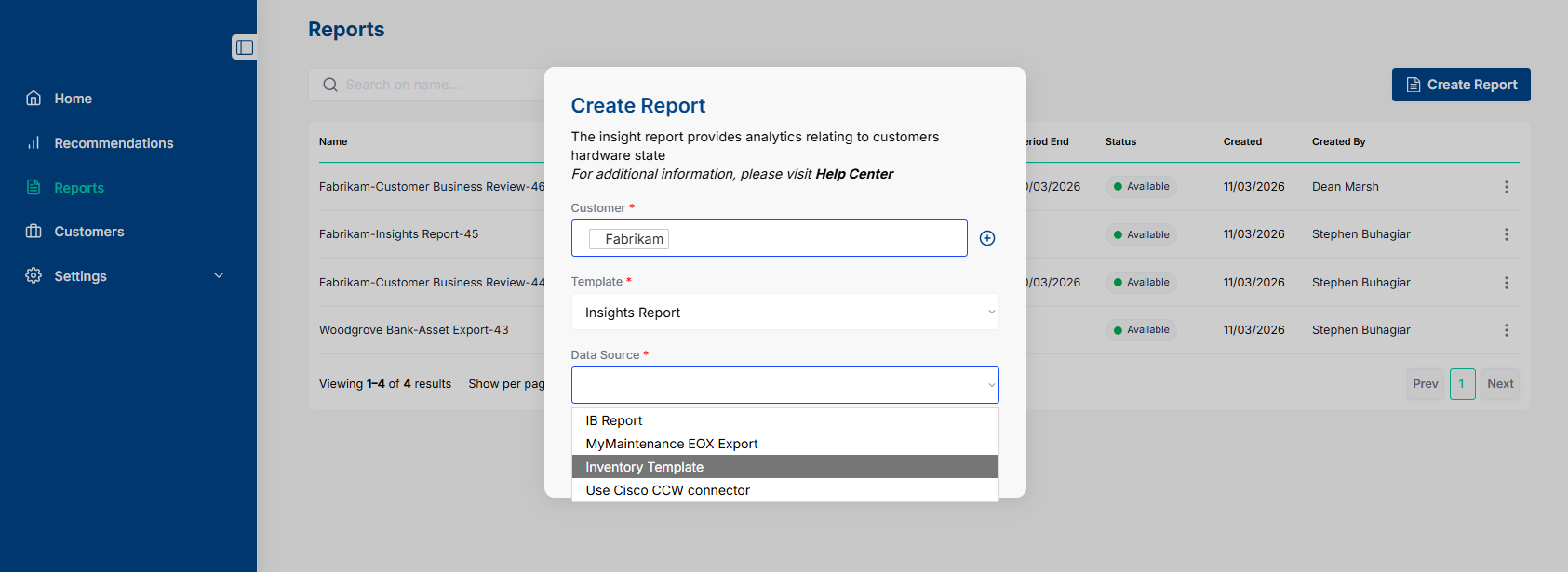
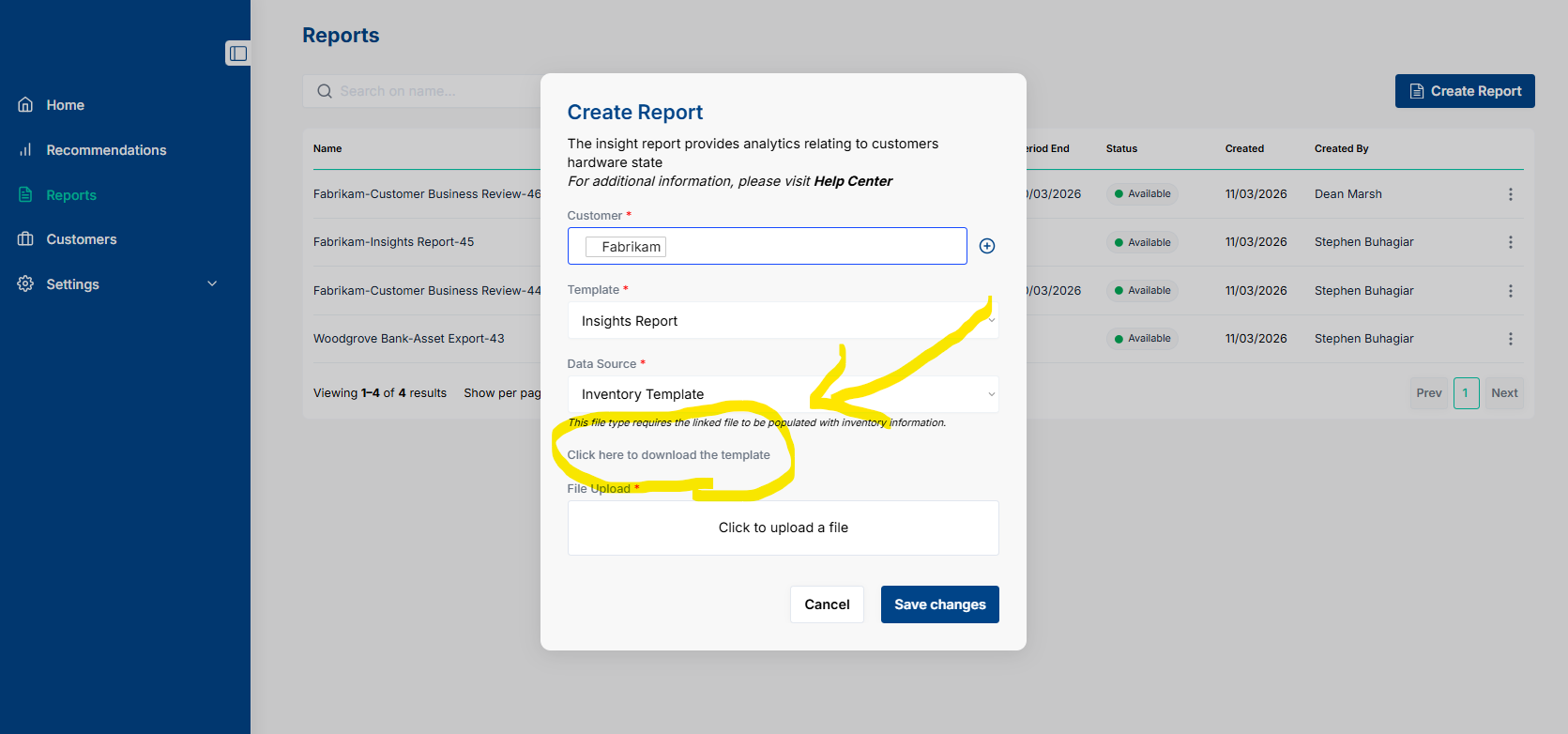
Step 4: From the Data Source Drop Down List Select Inventory Template
Step 5: Use the Download Link to Download a Copy of the Inventory Template
Note: The link is located in the word "here"
Step 6: Select Enable Editing
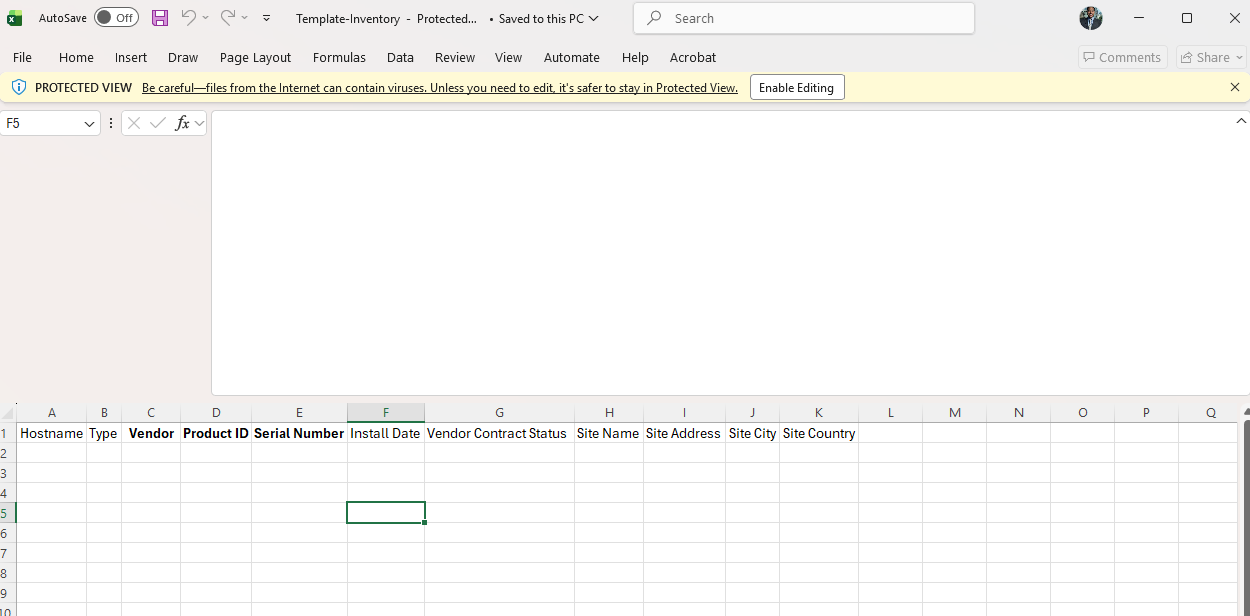
Step 7: Key Fields
Vendor - You can type Cisco in this field
Product ID - Type the Cisco SKU in this field
Serial Number - Add the device serial number if known
If unknown, add a unique serial number for each device as the platform de-duplicates assets in the known environment based on Serial Number.
An example unique serial number series you can use is: ABC123, ABC124, ABC125 etc
Tip: Add other known information such as Install Date, Vendor Contract Status, Site Name, Site Address etc. for increased data about the Inventory.
Once you have completed the spreadsheet with the known Inventory based on Cisco SKUs and key fields noted above, you can save the spreadsheet.
Step 8: Upload to Paratira
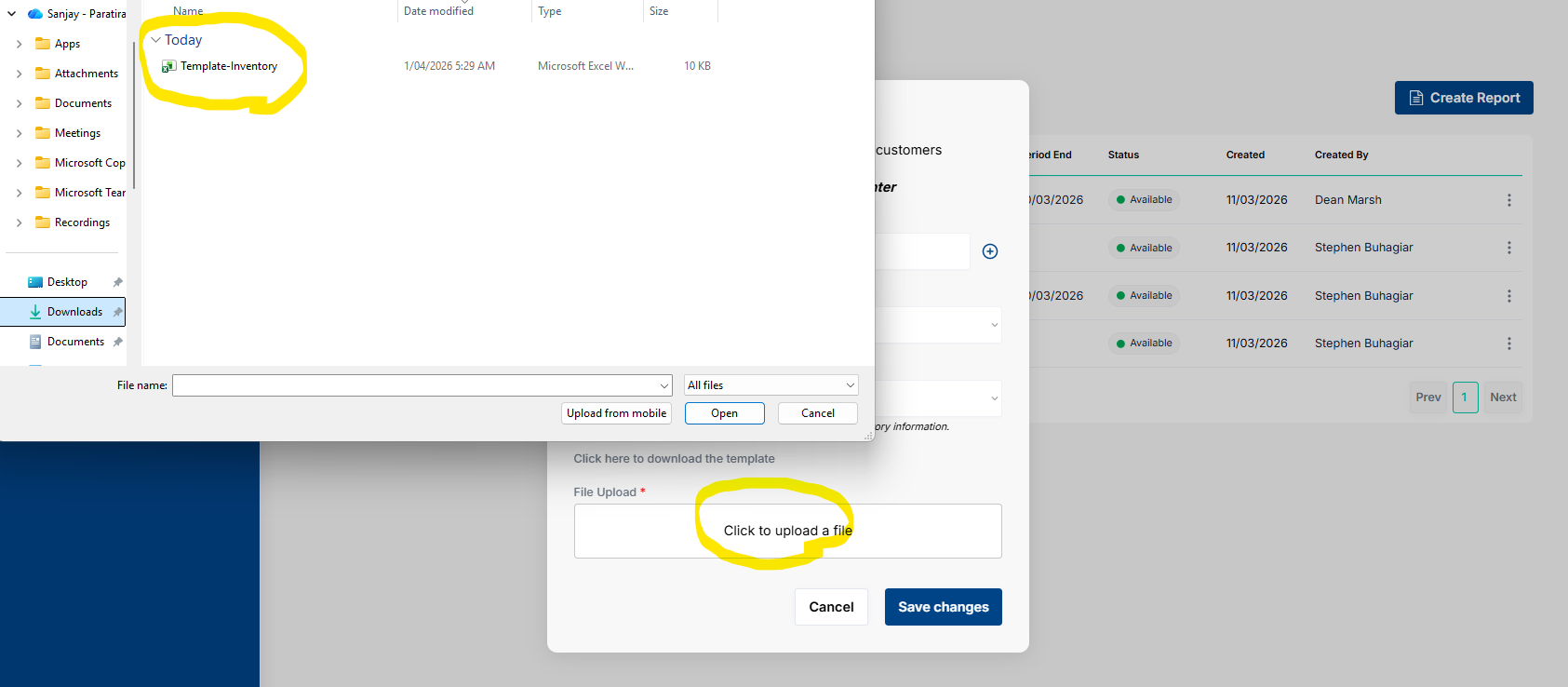
Click the upload a file button (circled below)
Select the inventory file you wish to upload and click the Open button
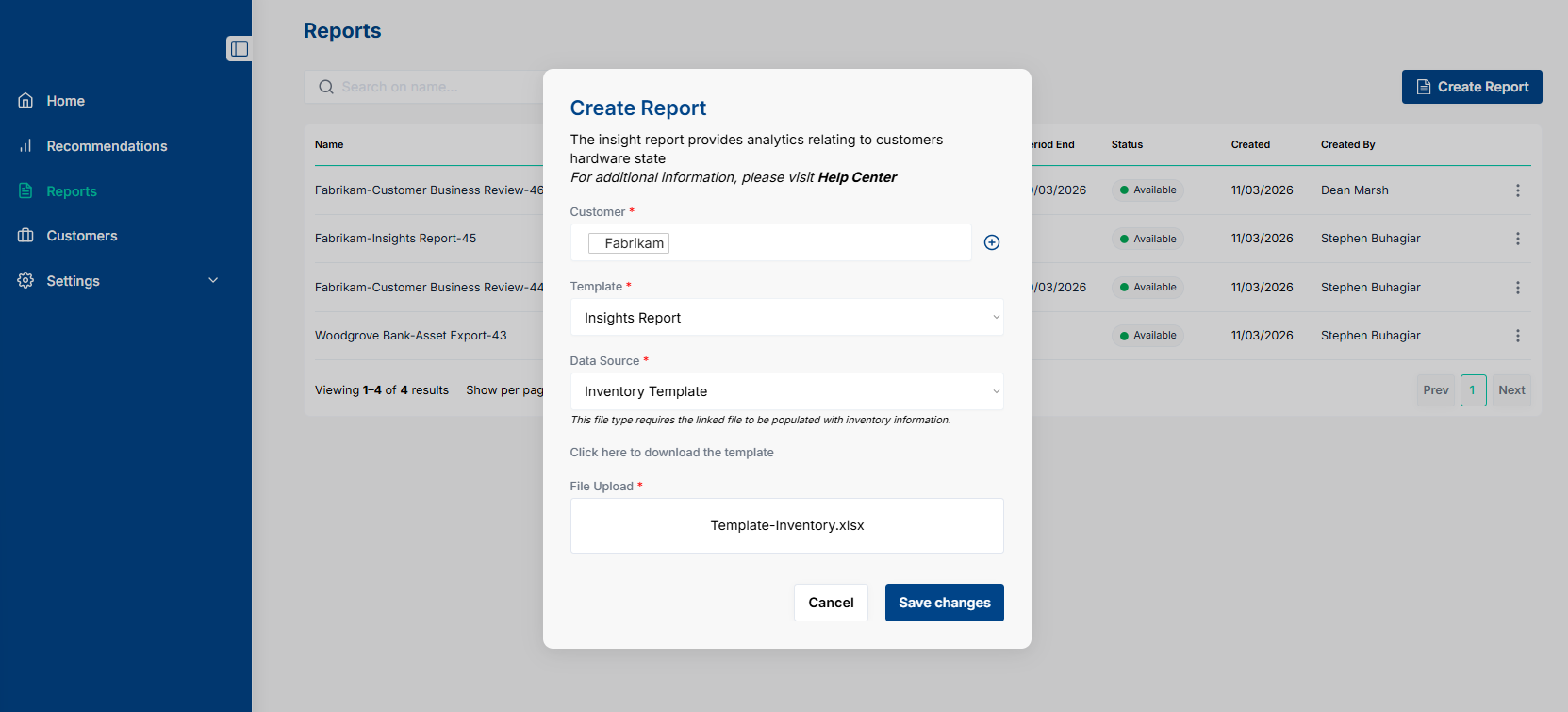
You should see the File you selected in the File Upload section
Click Save Changes
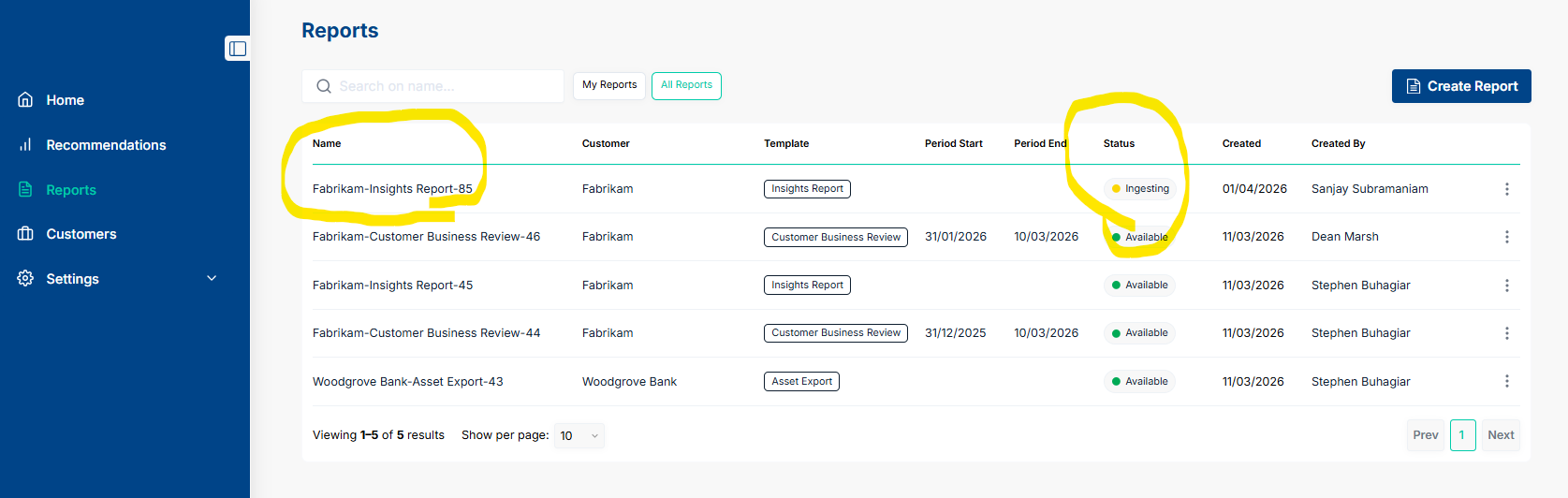
Step 9: This will kick off the process to Ingest Data and Generate the Report.
You can download a copy of the report by using the three dots once the Status has changed to green and Available.
For any technical requests, feel free to reach out to: sanjay.subramaniam@paratira.ai