
Insights Report
Understanding the Insights Report
Before generating an Insights Report in Paratira, it's important to understand the workflow:
- An asset export file must be available to upload in one of the following formats:
- Cisco Ready Install Base (IB) file must first be generated in the Cisco platform after processing a signed Letter Of Authority (LOA) or Digital Consent
- A MyMaintenance EOX export
- A populated inventory list using the provided inventory template
- This report is then uploaded to Paratira when initiating a Insights Report
- Paratira transforms the data into a comprehensive PowerPoint presentation available for download
Prepare your asset export file
Generate the IB report from Cisco
It's important to note that in order to generate a report for your customer within Cisco, they need to sign an LOA beforehand.
- Log in to https://crpartners.cloudapps.cisco.com/ using your Cisco account
- Click Digital Consent Repository

- Select the customer from the list by placing a checkbox in the left most column next to the customer name
- At the upper right of the customer list, click Actions and select Request Customer Detail Report
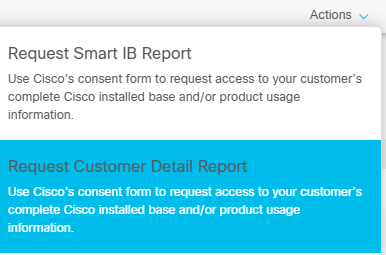
An email will be sent from Cisco (Cisco_Ready_Reporting_Center@cisco.com) when the report is ready to download
- If you receive "A server error has occurred" or "Bad request" while trying to download the report, please open the link in a private/incognito browser window
Generate a MyMaintenance EOX file
Run the EOX report and export to xlsx
Inventory template
- Download the provided template within the UI (Download inventory template)
- Populate at a minimum the columns named Vendor, Product ID and Serial number
- Populating additional columns will enrich the reporting further as follows:
- Type - ensures assets are categorized correctly across the report, if left blank we attempt to lookup these values
- Install Date - lights up the indicators of the asset age
- Vendor Contract Status - allows for the report to contain an indication of which assets require a vendor contract to be sold
- Site Country - provides a breakdown of coverage by region
- Populating additional columns will enrich the reporting further as follows:
Accessing the Reports Section
- Log in to your Paratira account
- Navigate to Reports in the left menu
- The Reports dashboard will display all existing reports with their status
Creating a Insights Report
Before you start this process, make sure you have created your customer within Paratira and your asset export file is available.
Step 1: Initiate Report Creation
- From the Reports dashboard, click the Create a report button in the upper right corner
- This will open the "Create new Insights Report" dialog
Step 2: Configure Report Details
- Enter a descriptive Report name that identifies the purpose or content of the report
- From the Choose Customer dropdown, select the customer associated with this report
- For Upload file type:
- If you are using a Cisco export, select "IB Report" from the dropdown menu
- If you are using a MyMaintenance EOX export, select "MyMaintenance EOX Report" from the dropdown menu
- If you are using a Cisco export, select "Inventory Template" from the dropdown menu
Step 3: Upload the asset export file
- In the Upload file section, either:
- Drag and drop the asset export file into the designated area
- Or click in the area to browse and select the file from your device
- After selecting the file, click the Save button to initiate processing
Report Processing
Once you submit a report for processing:
- The system will display a "Report created successfully" notification
- The report will appear in your Reports dashboard with a "Submitted" status
- Processing time varies from 2-15 minutes depending on the size and complexity of the report
- No further action is required during processing
- When the report has completed generating and is available for download it will show a status of "Available"
For large reports, you can navigate away from the page and return later to check status.
Troubleshooting
- Failed Report Generation: This can occur if the uploaded file is corrupted or in an unsupported format. Try downloading a fresh copy of the Cisco IB report and upload again.
Getting Help
For additional information about working with reports, see Managing Reports in Paratira.
If you encounter any issues not covered in this guide, please contact Paratira support through the Support section. Include the report name and any error messages you've received for faster resolution.