
Setting Up the Microsoft Defender for Endpoint Connector
Prerequisites
Before setting up the connector, ensure you have:
- A Microsoft account with Global Administrator, Cloud Application Administrator, or Application Administrator permissions for your tenant
- Administrator access to Paratira
- The ability to approve enterprise applications in your Microsoft tenant
Technical Audience
Experienced IT administrator or cloud engineer responsible for managing Microsoft Defender for Endpoint, with access to a Global Administrator account in Microsoft 365.
Granting Access to Paratira
Unlike other connectors that require you to manually generate API keys, the Microsoft Defender for Endpoint connector uses a streamlined enterprise application approach. You'll simply need to follow a consent URL and approve the requested permissions.
Step 1: Access the Connector Setup in Paratira
- Log in to your Paratira account
- Navigate to Settings in the left menu
- Expand the menu and select Connectors
- Click the Add a new connector button
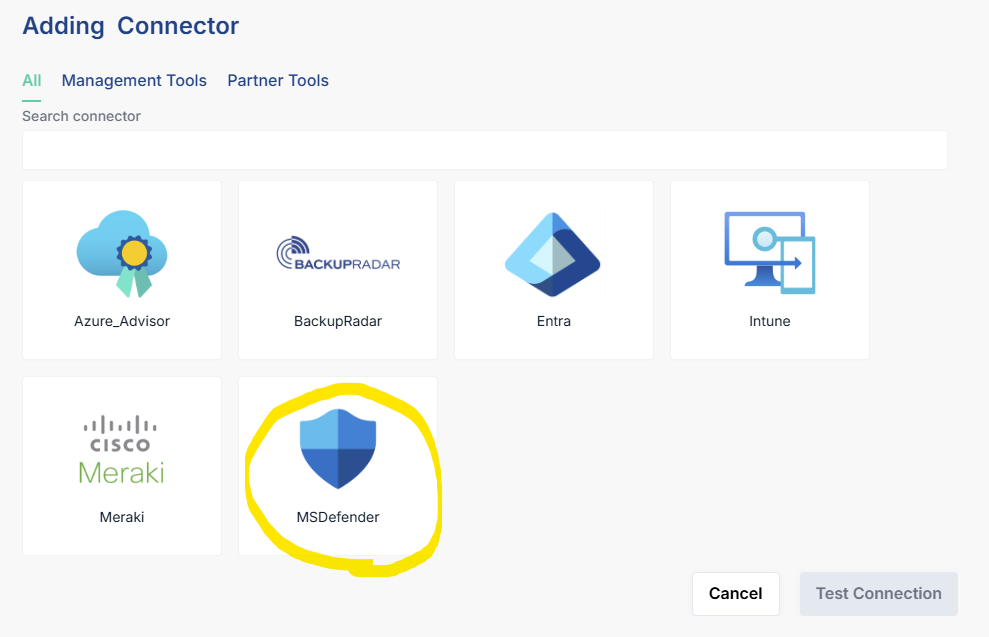
Step 2: Choose the Microsoft Defender for EndpointConnector
- In the "Add new connector" wizard, you'll see "Choose connector"
- Select the By technology tab
- Locate and click on the Microsoft Defender for Endpoint tile select One to One or One to Many
- Click Next to proceed to the next step
Step 3: Complete Microsoft Authentication and Consent
- Click this link to be redirected to the tenant for approval:
- Log into the tenant with an account that has Global Administrator, Cloud Application Administrator, or Application Administrator permission
- Click Accept to approve the permission request
- Note: All permissions granted are just read-only access
Step 4: Copy the Tenant ID
- Click this link to be redirected to the tenant to view your Tenant ID
- Sign in with the same Microsoft account you used for the approval process (if required)
- The Tenant ID will be presented under Basic Information
- Click the double sheets icon to copy the Tenant ID
Step 5: Enter the details in Paratira
- Enter the following details to complete the onboarding process in Paratira:
- Name: Enter a name for the connector e.g. Defender for Endpoint Connector
- Client ID: Enter the following GUID: 00e8252c-0847-49c6-95d9-c0045d19f13c
- Client Secret: Enter the secret that was given to you securely by a Paratira admin
- Click Add New Mapping
- Enter the Tenant ID that you copied earlier and the select the customer that you want to associate the connector with
- Click Add
- Once all details have been entered a new icon will appear called "Test Connection"
- Paratira will load the Validation Results and process the API endpoints associated and validate the data permissions have been configured correctly. This process can take few minutes to complete
- Once the permissions are completed click Next to proceed
Step 7: Complete Setup
- Review the connector summary information
- Click Finish to complete the setup
- Your new Microsoft Defender for Endpoint connector will appear in the connectors list
- Initial data collection will begin automatically
- Note, this app reg can also be used to onboard the Defender for Endpoint Connector
Data Collection Details
he Microsoft Defender for Endpoint connector collects the following information:
- Service health and status
- Endpoint update compliance
- Risk scores and security recommendations
Authentication Details
The Microsoft Defender for Endpoint connector uses OAuth 2.0 for authentication:
- The consent process creates an OAuth connection between Paratira and your Microsoft tenant
- Paratira securely stores the authentication tokens and refreshes them automatically
- No manual token management is required on your part
Troubleshooting
Access Issues
Error: "Insufficient permissions"
- Solution: Ensure you're using a Global Administrator account for the consent process
Error: "Consent rejected"
- Solution: Review the permissions again and ensure you understand what access is being granted
Error: "Tenant not found"
- Solution: Verify you're logged into the correct Microsoft account for your tenant
Post-Connection Problems
Error: "Cannot access Microsoft Defender for Endpointdata"
- Solution: The enterprise application consent may have expired or been revoked. Try reconnecting
Error: "Limited data available"
- Solution: Some advanced Defender for Endpointfeatures may require additional Microsoft licenses on your tenant
Best Practices
- Review Permissions: Carefully review the permissions requested during the consent process
- Use Least Privilege: If possible, create a dedicated admin account with only the necessary permissions
- Regular Verification: Periodically verify the Paratira enterprise application still appears in your Microsoft admin center
- Audit Logs: Review Microsoft Defender for Endpoint audit logs regularly to monitor the connector's activity
- Tenant Changes: If you make significant changes to your Microsoft tenant, check that the connector is still functioning properly
Support Resources
If you encounter any issues setting up your Microsoft Defender for Endpoint connector:
- Review Microsoft's Enterprise Applications documentation
- Contact Paratira support through the Resources section
- Check for known issues in the Paratira knowledge base
Should you have any issues, feel free to reach out to: sanjay.subramaniam@raioam.com